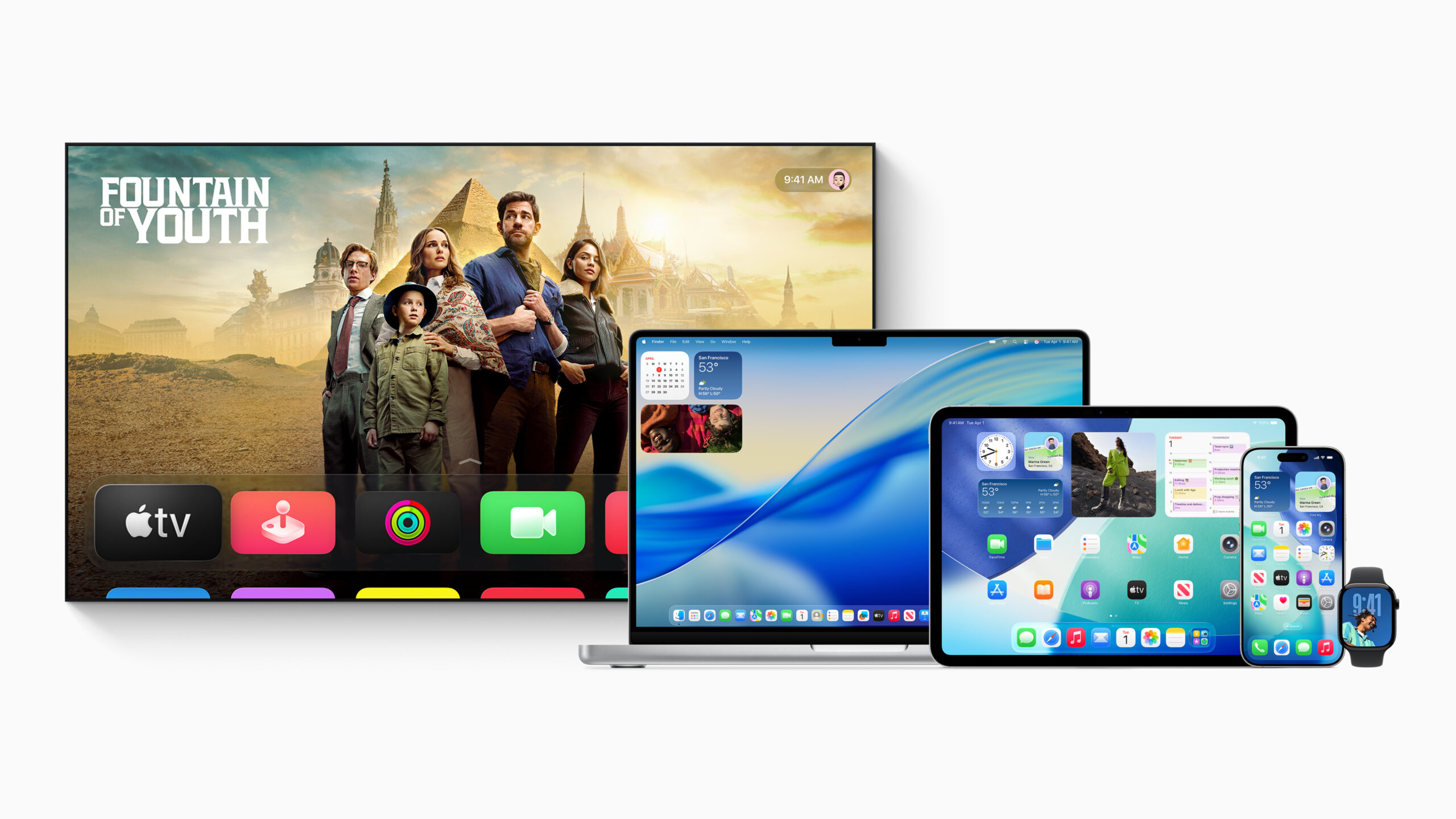
Earlier this year, Apple announced that it was introducing a massive aesthetic overhaul across its many operating systems in the form of “Liquid Glass”, which introduced new visual effects with how users interacted with their device. That being said though, it was a bit divisive—fans of Liquid Glass would refer to the update as a fresh new look for iOS, while folks not too keen on the changes often wished for a toggle to disable the feature.
CHECK OUT: Apple’s M5-Powered 14-inch MacBook Pro is Now Official
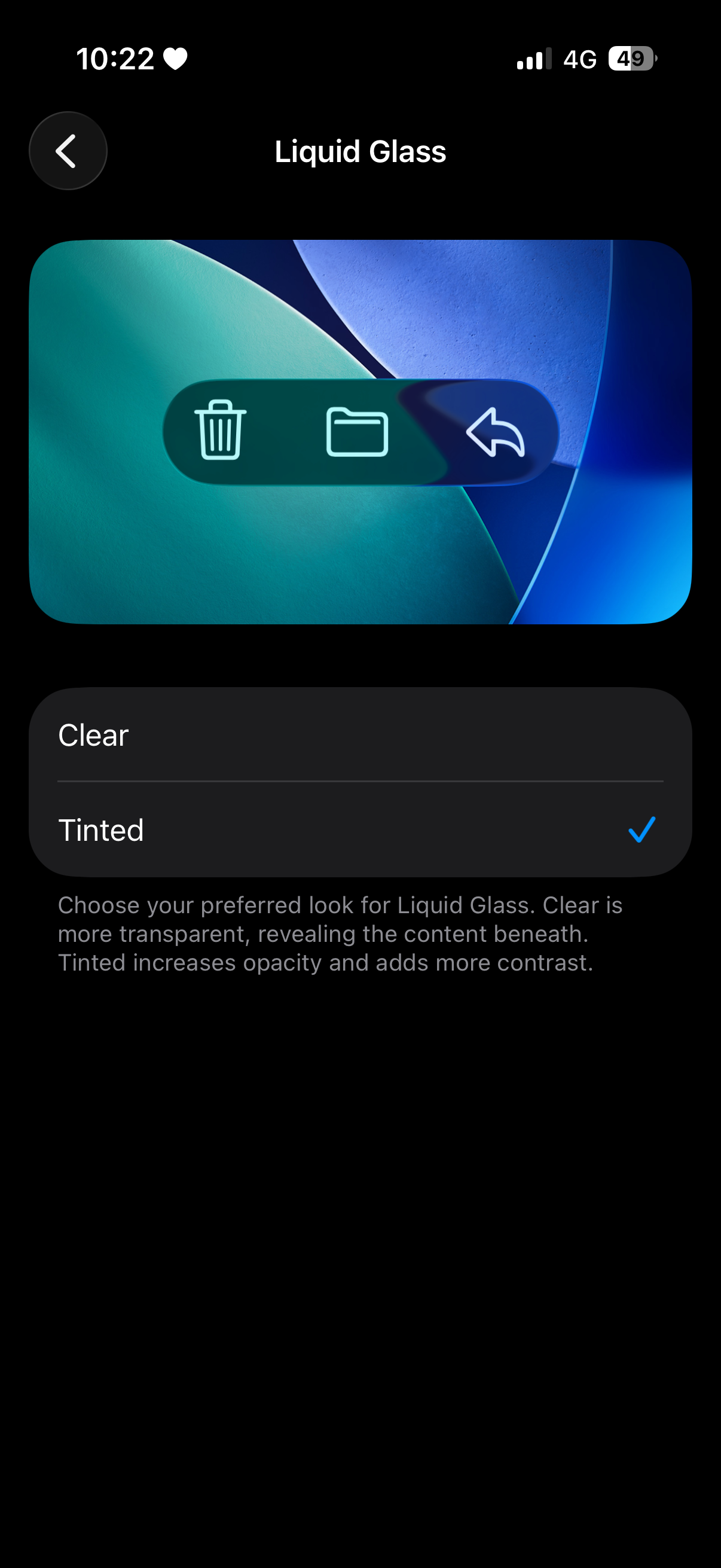
As such, it looks like Apple has been listening after all. The Cupertino company recently rolled out new updates for iOS 26.1, macOS 26.1 and iPadOS 26.1, which now comes with a new “Tinted” mode that finally lets users adjust how Liquid Glass looks on their device. It’s important to note however that this new option does NOT disable Liquid Glass, although it essentially tweaks the contrast and blur settings, which keeps the Liquid Glass effects a bit more subdued.
Now with that in mind, we’ve prepared this quick and easy-to-follow guide on how to find the new setting on your device, in case you want to change how your device looks. Keep in mind though that this is different from the “transprency” toggle under the “Accessibility” settings, which simply just unflatteringly blurs your entire display. With that out of the way, let’s get started!
Enable it on your iPhone
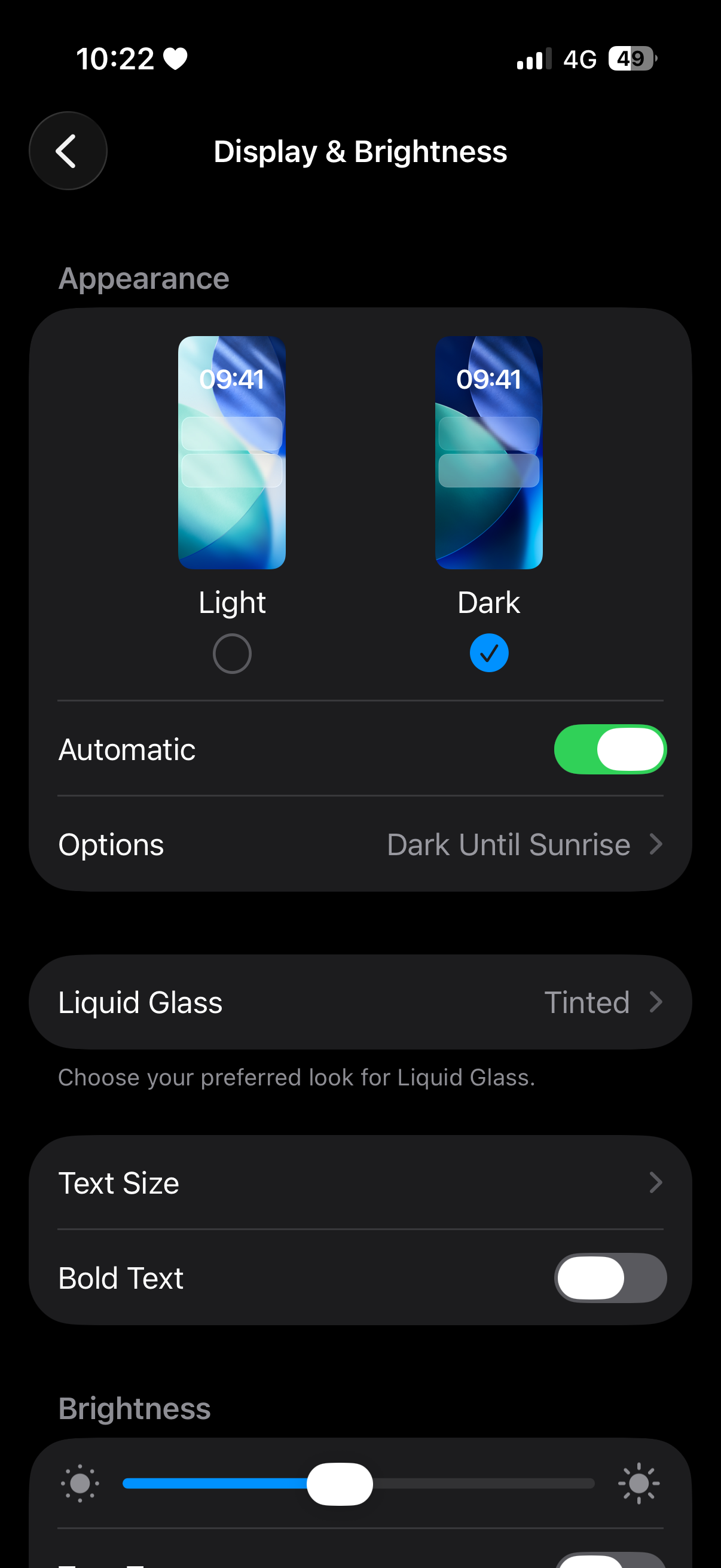
- Make sure your device is compatible with and updated to iOS 26.1
- Head on to your Settings app
- Scroll down to Display & Brightness
- Tap on Liquid Glass
- Tap on Tinted
For iPad Users
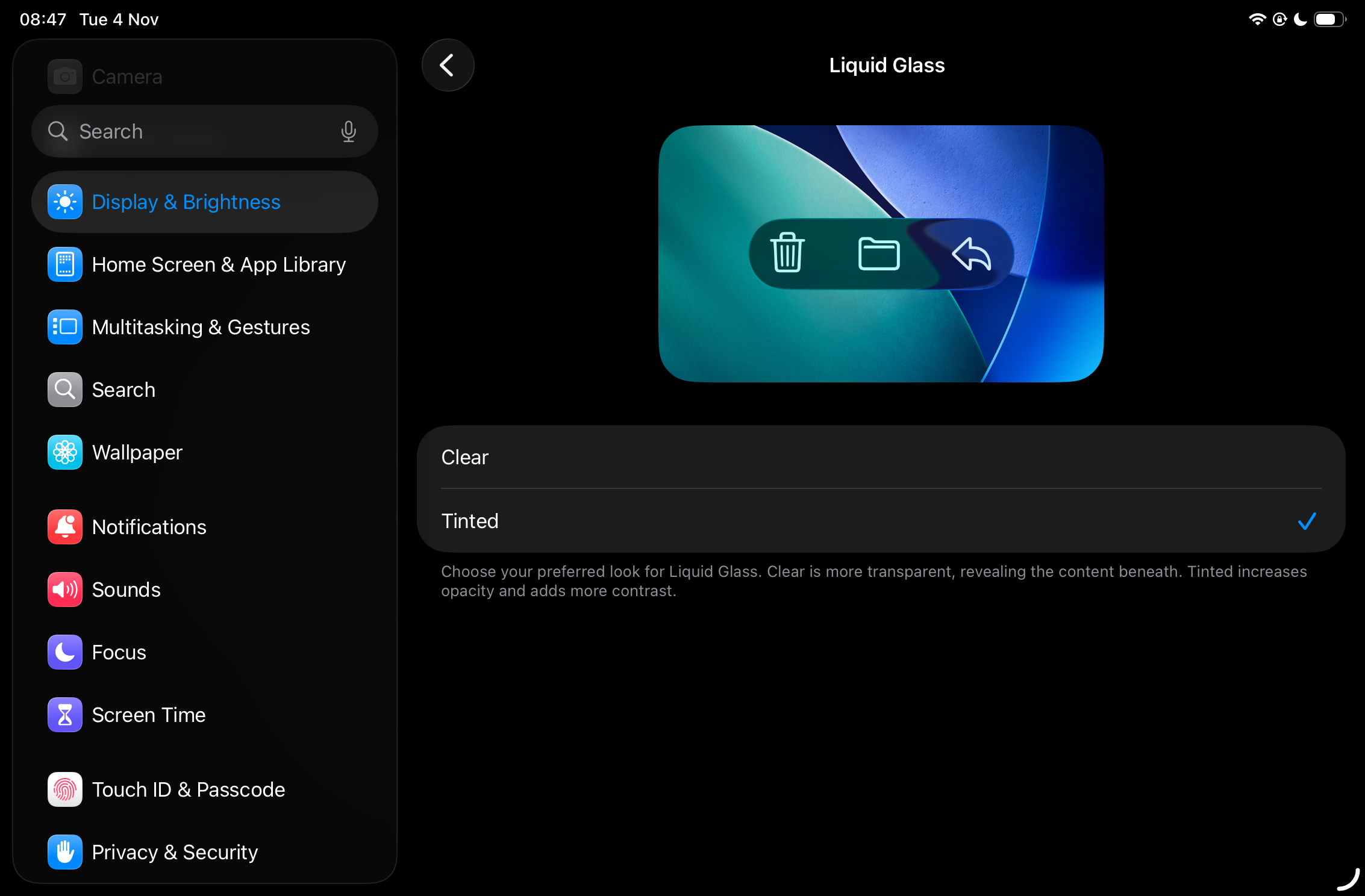
- Make sure your device is compatible with and updated to iPadOS 26.1
- Head on to your Settings app
- Scroll down to Display & Brightness
- Tap on Liquid Glass
- Tap on Tinted
On your Mac
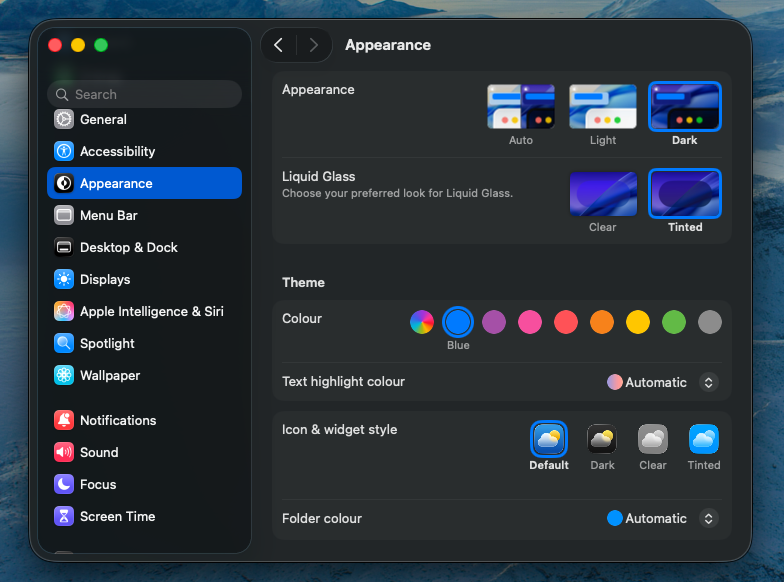
- Make sure your device is compatible with and updated to macOS Tahoe 26.1
- Head on to your Settings app
- Scroll down to Appearance
- Under Liquid Glass, you can choose between Clear and Tinted
During its launch event, Apple said that Liquid Glass’ uniqueness comes in part from its ability to reflect and refract its surroundings, allowing its colour to be influenced by on-screen content and to adjust between light and dark environments. Since its launch, Liquid Glass has been applied to various interface components, including on-screen buttons, switches, sliders, text, media controls, tab bars, and sidebars, as well as the Lock Screen, Home Screen, notifications, and Control Centre.
Will you be using Apple’s new “Tinted” option for Liquid Glass? Let us know in the comments below!